

Hello, everyone! Today, I am going to introduce how to use IntelliJ IDEA to directly integrate with GitHub for your software development tasks. There are two methods of integration: one is by directly using your GitHub account, and the other is by using a Personal Access Token to connect. In this tutorial, I will demonstrate the integration using the account binding method and, in the final section, explain how to unbind the integration.
The version of IntelliJ IDEA I am using for this operation is 2023.2 (Community Edition).
Difference between Integration Methods: Account Binding vs. Token Binding
Both integration methods allow us to easily perform GitHub operations. The major difference lies in the aspect of permission granting and duration, as shown in the table below for your reference.
| Integration Method | Permission Granting | Duration |
|---|---|---|
| Account Binding | OAuth authorization | Long-term |
| Token Binding | Personal Access Token | Customizable |
GitHub Account Binding Procedure
1.Click on “Projects” and then click on “Get from VCS.”。

2.After seeing the “Get from Version Control” window, choose “GitHub” and click on “Log In via GitHub.”。

3.Next, a web window will pop up, prompting you to authenticate in GitHub. Here, simply click on “Authorize in GitHub.”

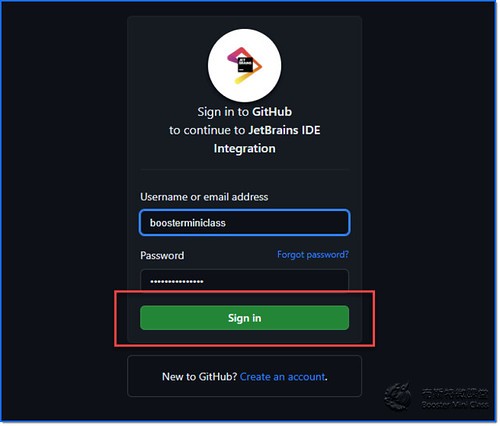
4.If you haven’t logged in to GitHub at this point, it will prompt you to perform the login first.
5.Next, you will see the permissions that need to be granted for this operation. Once you have verified everything is correct, click on “Authorize JetBrains” to grant the permissions.

6.After the authorization is completed, you will see a message indicating successful authorization. At this point, you can go ahead and close the window.

7.Finally, confirm that the integration is completed.

he above is the process for account binding. However, if one day we no longer use this computer or need to switch to a different computer, how can we unbind the integration? Please continue reading for the following steps.
Unbinding Account Procedure
1.Open the web browser and log in to GitHub.
2.Click on your profile picture in the upper right corner, and from the dropdown menu, select “Settings.”

3.Click on “Applications” in the left-side menu.

4.Select the “Authorized OAuth Apps” tab, find “JetBrains IDE Integration,” and click on the “…” symbol on the right side. From the expanded dropdown menu, click on “Revoke.”

5.At this point, a pop-up window will appear, asking if we are sure we want to revoke access and reminding us that this action is irreversible. Click on “I understand. Revoke access.”

6.After clicking, you will see a notification message appearing on the website, informing us that the binding has been successfully revoked. At this point, the integration with GitHub has been unbound.

Next, if we go back to IntelliJ IDEA and click on “Get from VCS” again, we will notice that the GitHub account option is no longer present. However, upon clicking, we will see that the project panel no longer displays the repository either. It informs us that the authentication has become invalid and prompts us to log in again to continue using it.
In fact, at this point, we can already confirm that the binding has been undone. However, to prevent IntelliJ IDEA from displaying this account further, we need to take a few additional steps.

Clearing GitHub Records in IntelliJ IDEA
1.Go back to the welcome screen of IntelliJ IDEA and select “Customize.” On the right-hand side under “Configure,” click on “All settings…”

2.In the search box within Settings, type “[GitHub]” and select “GitHub” under “Version Control” from the options below. At this point, we can see that our GitHub account is still retained in the GitHub account section.

3.Now, click on the unbound GitHub account and press the “[-]” symbol above it. This will completely remove the account from IntelliJ IDEA’s records. Finally, click on the “Apply” button in the bottom right corner and exit this screen.

4.Go back to “Get from VCS,” and now you will see that the GitHub account option has been restored to “No accounts” status.

GitHub Account Binding Video Demonstration (Using Version 2023.2)
Related posts:
 IntelliJ IDEA Tutorial Series | GIT Operation EP2 | How to Integrate GitHub – Using Token Binding
 IntelliJ IDEA Tutorial Series | GIT Operations EP3 | Creating a Git Repository: Git Init & Git Clone
 IntelliJ IDEA Tutorial Series | GIT Operation EP4 | How to Avoid Committing Unnecessary Files to Git Repository – .gitignore File
 IntelliJ IDEA Tutorial Series | Git Operations EP6 | How to Push Local Repository to Remote Repository
 IntelliJ IDEA Tutorial Series | GIT Operations EP9 | Mastering Branch Operations: Create, Push to Remote Repository, Switch, and Delete