
In May 2026, Google announced Gemini Spark: a personal AI assistant that runs in the cloud around the clock, connects to Google services such as Gmail, Docs, and Slides, and keeps working when your laptop is closed and your phone is locked. It can scan your credit card statement each month for new subscription fees, or compile meeting notes, create a document, and draft follow-up emails.
Google’s official announcement says Spark is designed to ask the user first before “high-stakes actions” such as spending money or sending email. That’s a good default, but it reflects the vendor’s view of high stakes. For you, deleting a cloud folder, sharing a document with someone outside, or accepting a meeting invitation may be just as irreversible, and not necessarily on that list.
So before an always-on assistant joins your main accounts, write your own stop list: which things it can only read, which it can only draft, and which must wait for your yes. Don’t rely on the vendor’s defaults alone.
Good at organizing doesn’t mean safe to act
In early access, a TechCrunch reporter had Spark do several things: find drugstore deals, write a day-trip packing list, and compile a weekly newsletter digest. It was mostly useful but made small mistakes: a promo code it recommended was actually invalid, even though it said the requirements were met; asked for five articles, it returned four.
In “organizing and suggesting,” you catch and fix these at a glance. The same error rate in “send,” “delete,” or “pay” becomes an incident. Being good at organizing doesn’t mean it can be trusted to act directly; the two require completely different levels of reliability.
OWASP, the Open Worldwide Application Security Project, an international community that catalogs security risks, calls this kind of risk “excessive agency” and lists three sources: AI gets functions it doesn’t need, gets more permissions than necessary, and carries out high-impact actions without independent confirmation. An always-on assistant easily hits all three, because it connects to your most important accounts and runs while you’re away.
Put every action in one of three columns
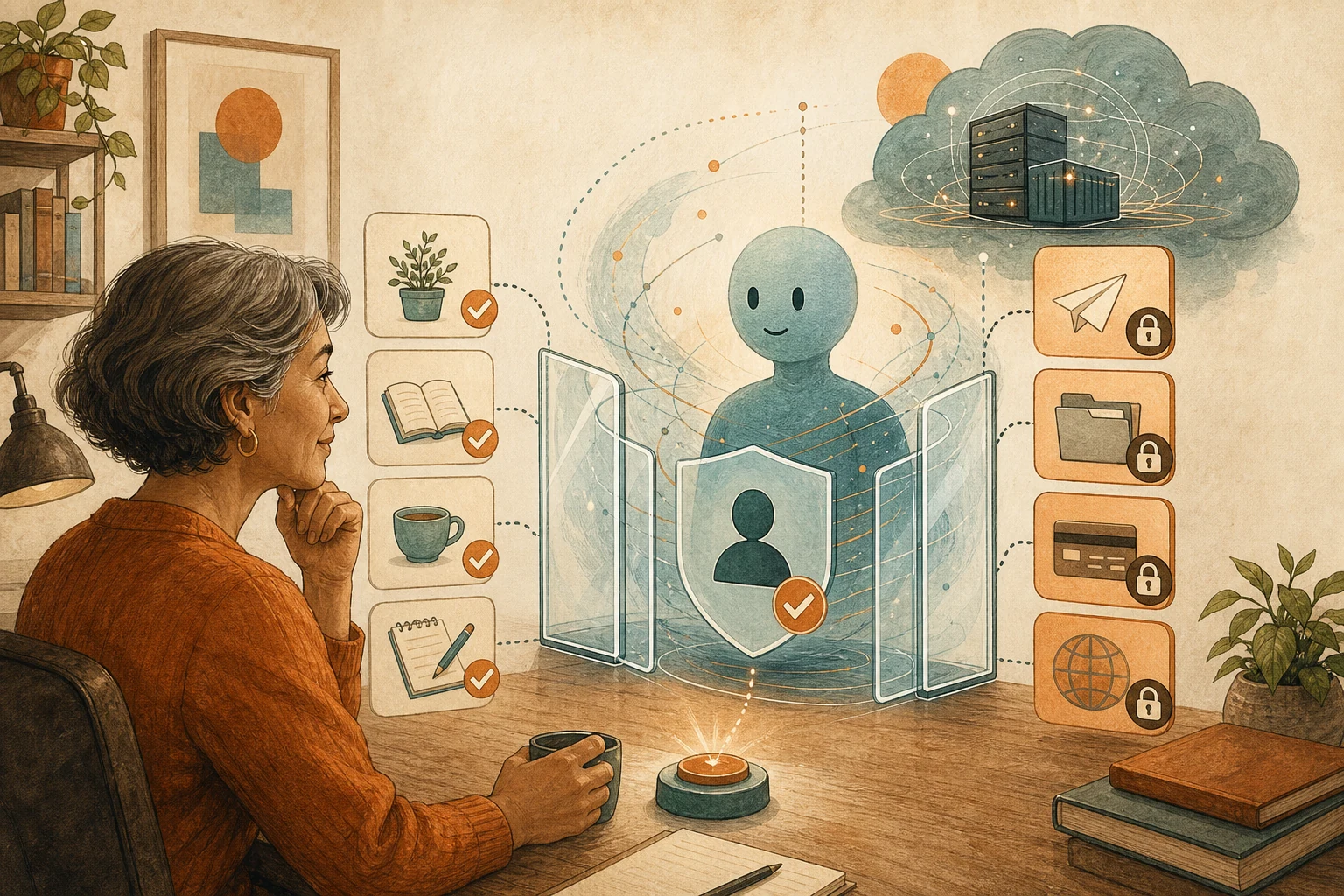
List the accounts you plan to let it touch one by one, then put each action in one of three columns:
Read only: reading email, calendars, and documents to compile summaries, reminders, and to-dos. Spell out the scope here too, for example reading only email with a certain label rather than the whole inbox.
Draft only: reply drafts, meeting invitation drafts, document edit suggestions. Output stays in the drafts folder or a review list and isn’t sent directly.
Must wait for your yes: sending email or replies to others, accepting or sending meeting invitations, deleting or moving files, changing sharing permissions, paying for or canceling services, posting publicly. Copy in the actions the vendor asks about by default, then add the actions in your own workflow that can’t be undone if they go wrong.
For why sending a meeting invitation should be a human decision, see Once AI Finds a Free Slot, a Person Decides Whether to Send the Invite.
Open only the first two columns in week one
Don’t open all three columns at once. In the first week, let it only read and draft, and watch for three things: whether it misreads the limits you set, whether it flags unimportant things as urgent, and whether it mixes old context into new tasks.
You can catch every error from that week at the draft stage. Once you know where it tends to go wrong, decide which actions in the third column can become “send after you’ve looked,” rather than handing everything over from the start.
A stop list can’t cover what you can’t see
A stop list only covers actions you can see. An always-on assistant runs while you’re away, so you need to be able to find out afterward what it did: every draft and every action you approved should leave a time, the data it relied on, and the result. A tool whose records you can’t check isn’t suited to your main accounts.
Also, whether your work stops when it goes down is another question to think through in advance; see When AI Goes Down, How Long Work Stops Depends on Your Fallback.
AI handoff card
I plan to connect an always-on AI assistant to my main accounts and want to write its stop list first.
The method comes from this article: https://boosterminiclass.com/en/posts/always-on-ai-assistants-need-permission-boundaries/
Its view: an always-on assistant acts even while I'm away. The vendor says it asks before high-stakes actions, but the vendor defines the scope. Before connecting main accounts, I sort every action into three columns myself: read only, draft only, and must wait for my yes, and open only the first two columns in week one.

First ask me: which accounts to connect, and the three things I most want help with.
Then:
1. List the actions it might take in each of these accounts, sort them into "read only," "draft only," and "must wait for my yes," and give a reason for each;
2. Mark the actions that can't be undone if wrong, such as sending, deleting, sharing permissions, paying, or accepting invitations;
3. Propose a first-week trial scope: which read and draft permissions to open, which kinds of errors to watch for, and how to record them;
4. List what I need to check in the tool's settings, such as whether activity records can be reviewed and whether permissions can be revoked at any time.
Don't turn on any permissions or connect any accounts for me; give only the list and recommendations.
References
- Google official blog: The Gemini app becomes more agentic, delivering proactive, 24/7 help — https://blog.google/innovation-and-ai/products/gemini-app/next-evolution-gemini-app/ (2026-05-19)
- TechCrunch: I put Google’s 24/7 AI assistant Gemini Spark to work, and it’s actually pretty useful — https://techcrunch.com/2026/05/30/i-put-googles-24-7-ai-assistant-gemini-spark-to-work-and-its-actually-pretty-useful/ (2026-05-30)
- OWASP Gen AI Security Project: LLM06:2025 Excessive Agency — https://genai.owasp.org/llmrisk/llm062025-excessive-agency/ [accessed: 2026-10-11]