
You may already use Apple Shortcuts: tap once to organize photos, turn on a Focus mode, move meeting notes into Notes, or connect actions across several apps. In the past, the hard part was setup. You had to know how each action connected, how conditions worked, and where the data came from before the shortcut would run reliably.
In WWDC coverage from June 8, 2026, Apple brought AI into Siri, Shortcuts, Safari, and system features such as Messages, Calendar, and Home. TechCrunch reported that the new Shortcuts app will let users describe the workflows they want with prompts. The Verge and Ars Technica also noted that Siri AI is becoming more context-aware and more deeply connected with system apps.
That sounds like your phone can finally connect the workflow for you. But for everyday users and small teams, the real new risk is not “Can AI automate this?” It is: if I did not build this shortcut myself, which step will actually act?
This lesson turns “When AI Builds an Apple Shortcut, Find the Step That Actually Acts” into one practical reader question: As Apple lets Shortcuts turn natural-language requests into workflows, the key is spotting which step reads data, changes data, sends something out, or creates a hard-to-undo result. Use the rest of the article to decide what should happen before the team proceeds.
Mini lesson: understand the action boundary before every technical detail
The value of adding AI to Shortcuts is that it can turn “what I want” into a possible workflow. You might ask it to summarize today’s meetings before you leave work, list three things for tomorrow, and add reminders to your calendar. AI may connect Calendar, Notes, Messages, Safari, or other app actions for you.
The problem is that a workflow can look smooth without every step being safe to run automatically. Summarizing text and sending a message are different risks. Reading a calendar and creating a meeting are different risks. Creating a draft and deleting the original data are not the same action at all.
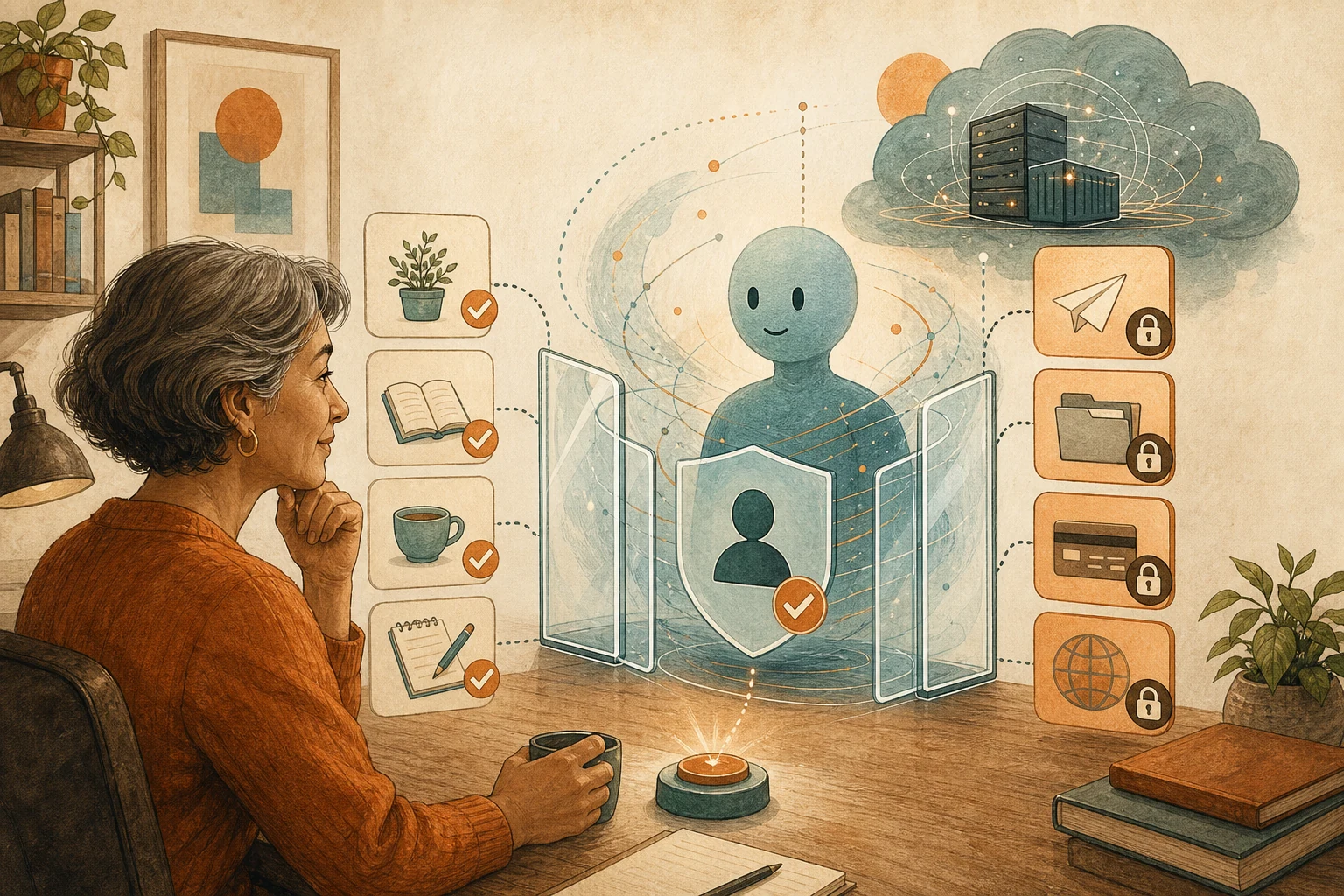
So when you review an AI-written shortcut, you do not need to understand every technical term first. Start with the action boundary: which step only reads, which step writes, which step notifies someone, and which step would be hard to undo?
Run it once without touching real data
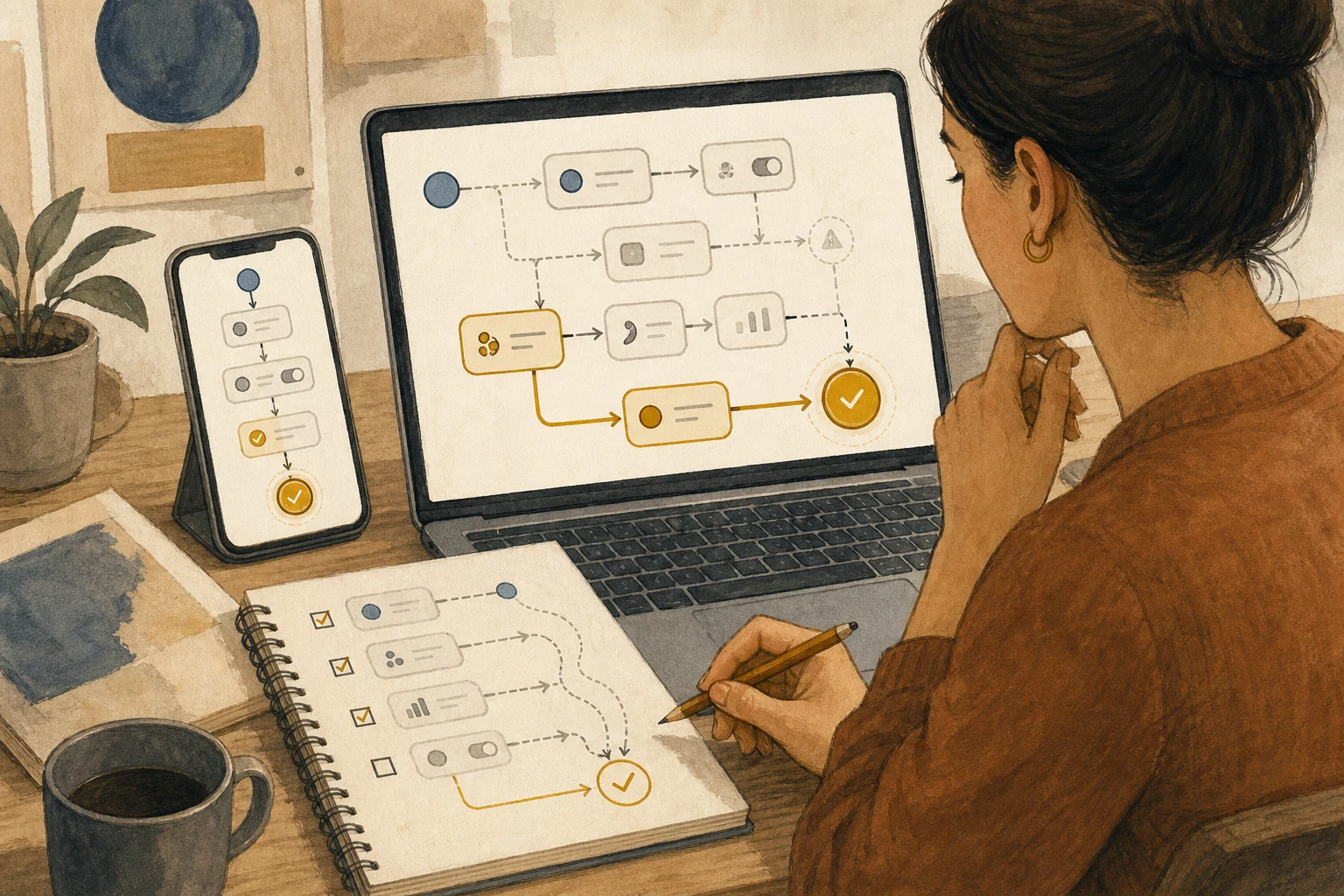
A safer pattern is to treat the AI-generated shortcut as a draft, not a finished workflow. The first time you see it, do not rush to approve it or add it to your daily routine. Use test data, a test calendar, a test note, or preview-only output.
You are not only checking whether it runs from start to finish. You are watching what it does along the way:
- Which apps or folders does it read?
- Does it bring private messages, photos, customer data, or work documents into the flow?
- Does it create a draft, or does it send directly?
- Does it add, modify, or delete data?
- If it is wrong, can you undo the result?
These questions matter more than whether the AI-generated workflow looks clever. Automation usually becomes risky not at the first step, but at the last step you did not notice.
Small teams should protect the second before sending
Imagine asking AI to build a shortcut that summarizes a meeting, extracts tasks, and writes a follow-up message to a customer. That sounds reasonable and time-saving.
But one workflow contains three very different actions. Summarizing notes is usually lower risk. Adding tasks to your own reminders is medium risk. Sending a message to a customer is much higher risk. If AI misunderstands the deadline, writes in a tone that sounds too final, or includes a price that was not confirmed, the mistake has left your device and become an external commitment.
The best rule here is not “do not use AI.” It is to make the final step stop at a draft. Let AI organize, summarize, fill fields, and prepare a candidate message. Before anything is sent, shared data is modified, content is deleted, a payment is made, an account is authorized, or a setting is changed, the workflow should pause for a person.
If you cannot explain a step, do not approve it
People may lower their guard because “the system generated it.” In practice, the part of an AI-written workflow that deserves the most caution is the step you do not understand.
If a step appears to handle variables, filter files, read location, access photos, change a calendar, or call an app action you do not recognize, do not treat it as a small detail. You can break it into smaller steps, change it to a preview, or remove it for now. Running successfully does not mean it belongs in the workflow. Saving time does not mean you should hand over the final decision.
For a small team, a simple internal rule is enough: if an AI-generated shortcut touches customers, money, account permissions, deletion, or outbound messages, it does not run fully automatically the first time. Keep it in draft mode for at least a week, watch for error patterns, then decide whether to expand it.
Change one habit today
The next time you let AI generate a Shortcut, do not ask first whether it can finish everything in one run. Ask: “Which step in this workflow actually acts?”
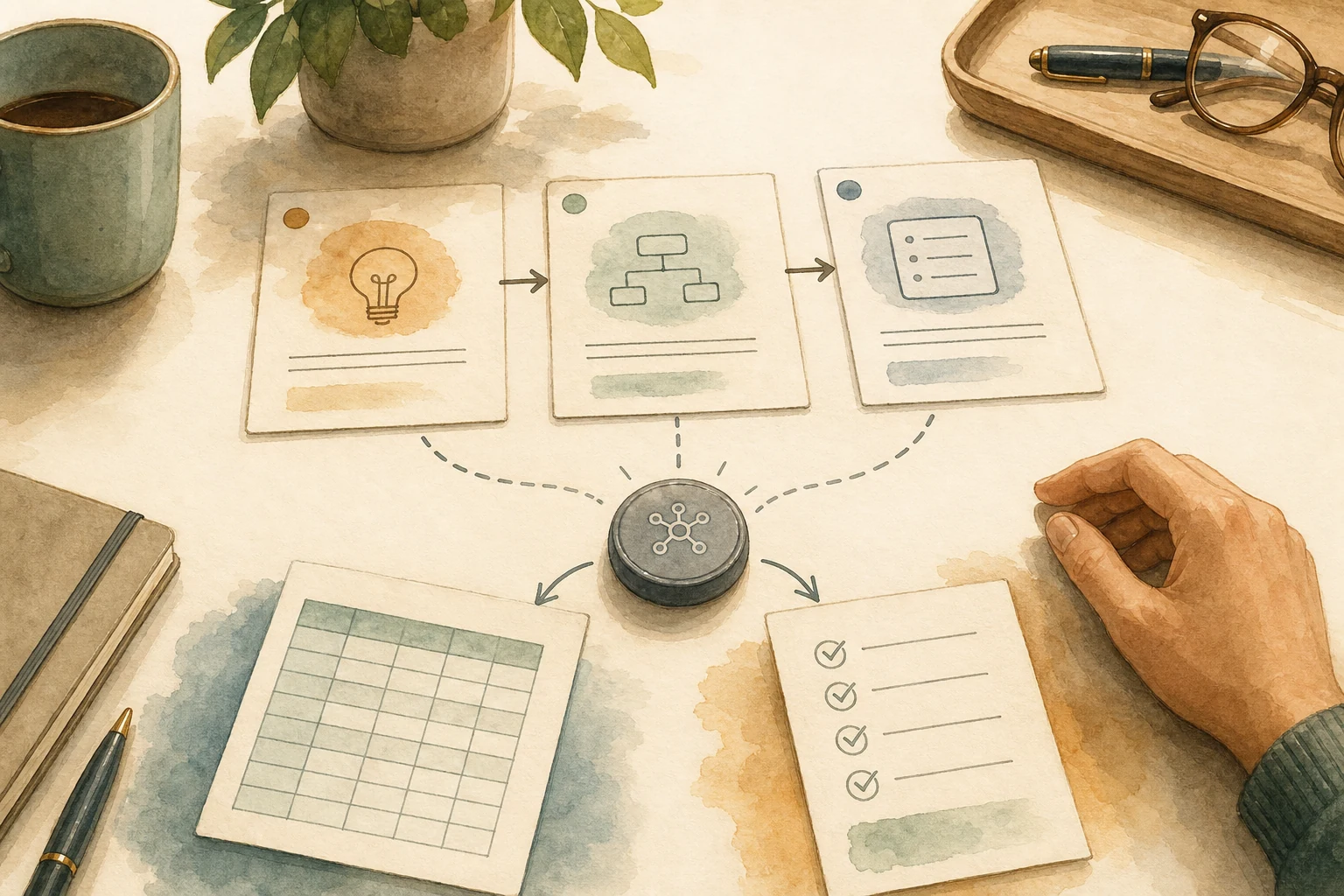
Read the shortcut in three parts: it reads data, organizes content, and then performs an action. AI can help a lot with the first two. The last part should stop at a draft or confirmation screen whenever it involves sending, paying, deleting, modifying shared data, or notifying people outside your private workspace.
Apple bringing AI into system workflows means more people can create automation with natural language. That is useful. But the easier it becomes to generate a workflow, the more important it is to protect the action boundary. A good AI shortcut does not press every button for you. It helps you build a workflow you can understand, pause, and own.
AI handoff card
Convert the article’s decision into your workflow If you want a personal checklist from this lesson, paste the prompt below into an AI tool you trust and avoid sharing sensitive data.
I want to apply this BMC mini lesson to my own situation: When AI Builds an Apple Shortcut, Find the Step That Actually Acts

Specific problem this article handles: As Apple lets Shortcuts turn natural-language requests into workflows, the key is spotting which step reads data, changes data, sends something out, or creates a hard-to-undo result.
Article URL: https://boosterminiclass.com/en/posts/apple-shortcuts-ai-workflow-permission-checklist/

Do not only summarize the article. First ask me 3 questions to clarify:
1. the real workflow or decision I am dealing with;
2. which data, permissions, accounts, costs, or external actions are involved;
3. whether I need a stop/go decision, a trial checklist, a handoff template, or a risk tier.

Then check my situation with this article-specific framework: 1. Which Apple Shortcuts / Siri AI workflow do I want AI to generate for me? 2. Which steps only organize a draft, and which steps read data, change data, send messages, or delete content? 3. Which step needs human confirmation, and which step must stop at a draft, reminder, or preview? 4. A step-by-step understanding, pause point, and final approval rule for AI-written shortcuts.

Please output:
- one sentence on whether I should proceed, run a limited trial, or pause;
- a comparison table applying the framework to my case, with ready / missing evidence / needs human review;
- one smallest step I can take today;
- where I need an owner, log, rollback path, or human review.
Pause for human review before account, money, personal-data, or external actions.
References
- TechCrunch: Apple will let you build workflows using AI in its new Shortcuts app — https://techcrunch.com/2026/06/08/apple-will-let-you-build-workflows-using-ai-in-its-new-shortcuts-app/
- TechCrunch: Apple just taught your iPhone to finish your sentences, your photos, and your workflows — https://techcrunch.com/2026/06/08/apple-just-taught-your-iphone-to-finish-your-sentences-your-photos-and-your-workflows/
- The Verge: Apple announces Siri AI and its next generation of Apple Intelligence — https://www.theverge.com/tech/942416/apple-siri-ai-update-wwdc
- Ars Technica: Say hi to “Siri AI”—Apple announces new, more “conversational” voice assistant — https://arstechnica.com/apple/2026/06/say-hi-to-siri-ai-apple-announces-new-more-conversational-voice-assistant/
- Apple Developer News: Apple developer updates and WWDC resources — https://developer.apple.com/news/