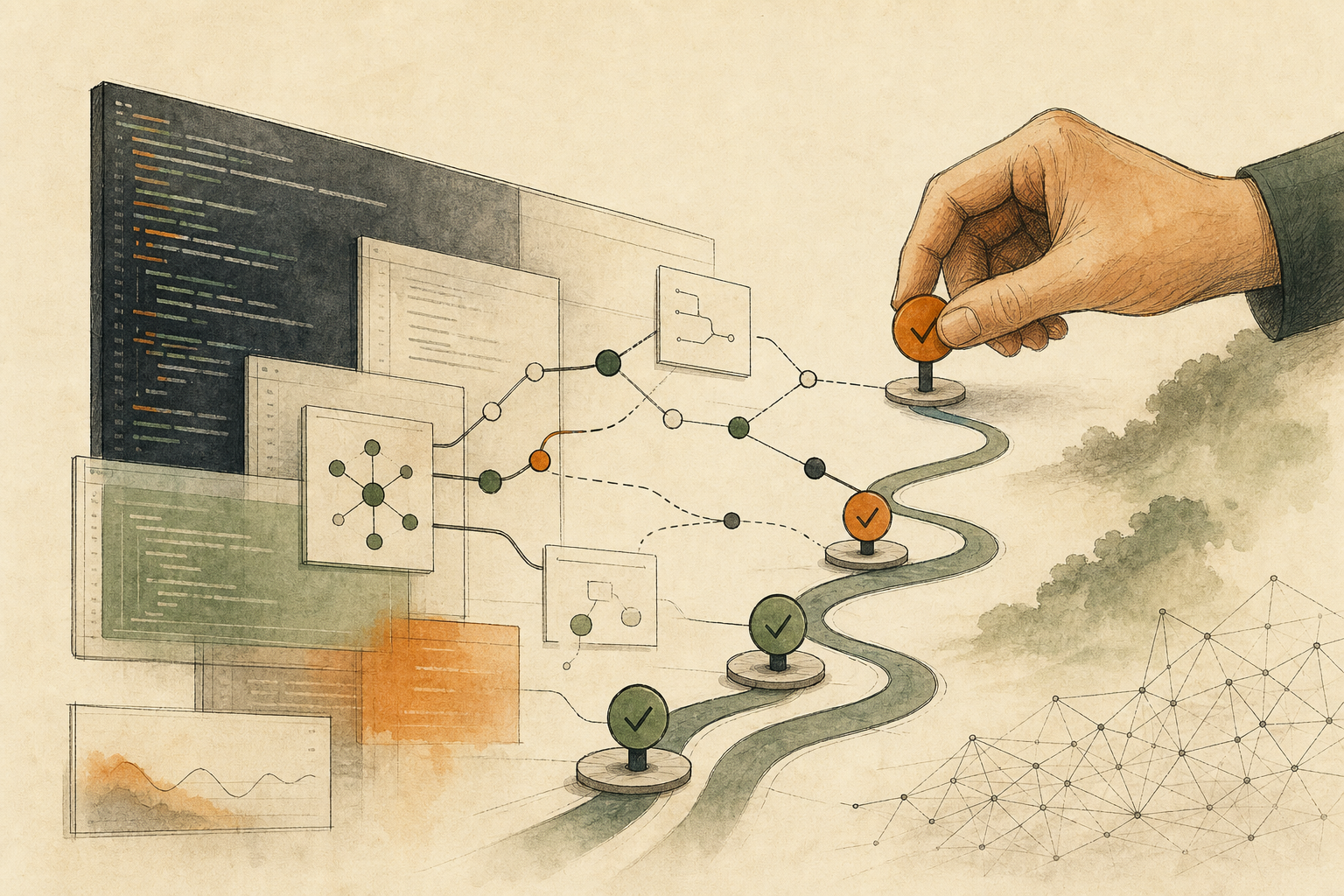


At its Config conference in June 2026, the design tool Figma announced “code layers”: a design layer can be turned into interactive code with one click (or a prompt) and placed directly on the canvas; you can duplicate it to compare interaction directions side by side, or pull it back into editable design layers and sync the changes to the code with one click. Figma Motion, launched alongside it, keeps animation timelines and keyframes inside Figma, and in Dev Mode the animation can be copied as CSS, JSON, or React code. The official blog also notes that animated frames can be handed through MCP directly to a coding agent for implementation. MCP is a protocol for connecting AI tools; a coding agent is an AI assistant that reads code and edits files.
This finally puts design, motion, and code on one canvas. But it raises a new problem: when what’s on the canvas already runs and looks like a product, it’s easy for it to be built exactly as is, especially if a coding agent that takes everything literally sits in between.
So at handoff, designers need to mark one thing clearly: what is settled design intent and what was just an experiment during exploration. Which code can be reused and which must be rewritten is engineering’s call, not something decided by whether the prototype runs.
A running prototype isn’t a build spec
Figma’s official post describes code as a new design “material” for exploring and iterating; it doesn’t say the code on the canvas can ship directly. An effect that moves on the canvas doesn’t mean the code fits the product’s architecture, the animation runs smoothly on every device and browser, someone can maintain the AI-generated plugin or effect, or engineers know which details are deliberate and which were casual tries.
The post also notes that interactive shader effects are still being tuned for performance. Smooth on the canvas doesn’t mean smooth on a mid-range phone.
Mark intent and experiment item by item at handoff
Code: state whether this code was for comparing interaction directions or is meant for engineering to reuse. Treat it as a prototype by default and let engineering decide whether to rewrite or adopt it.
Motion: list timing, triggers, and the alternative users sensitive to motion should see (such as a reduced-motion setting). State performance limits at handoff.
AI-generated content: mark which effects, plugins, or versions were generated by AI, and have an owner check maintainability, licensing, and brand consistency.
External data: Figma’s AI agent can connect to tools like Notion, Slack, and GitHub for context. Confirm which documents may be read and which must not be pulled into designs automatically.
Final responsibility: name one owner to decide the delivery scope, change history, and conditions for sending work back.
Before handing motion to a coding agent, also write down what this task does and doesn’t include; see Can a Coding Agent Take This Issue? Only If You Can Describe the First Diff.
Keep exploration and delivery areas separate
In the Figma file, separate free-exploration pages from pages ready for delivery. The exploration area can be as messy as you like, with many duplicated versions; the delivery area holds only content that’s been labeled for intent and reviewed. Engineers take material only from the delivery area; anything in the exploration area counts only once it’s moved over and labeled.
The same approach applies to AI-generated visual assets: before generating, write purpose and constraints as checkable conditions; see Design AI Can Follow Your Words, but You Still Have to Spell Out What It Should Make.
The feature is still on a waitlist
Code layers only start rolling out in July via a waitlist, and they may look different in practice than at launch. This article is about handoff principles, not a feature tutorial; for specific settings, rely on Figma’s latest documentation.
Also, labels only make intent clear; they can’t guarantee a correct implementation. Motion, accessibility, and performance still need testing on real devices.
AI handoff card
Our designers have started building prototypes on the Figma canvas with code layers, motion, and AI effects, and I want to set up how we review them before handing off to engineering.
The method comes from this article: https://boosterminiclass.com/en/posts/figma-canvas-code-handoff-review/
Its view: the more a prototype looks finished, the more likely it is to be built exactly as is, especially when handed to a coding agent. At handoff, mark clearly what is settled design intent and what was just an experiment; engineering decides which code can be reused.

First ask me: the prototype's purpose (exploration, internal decisions, or handoff to engineering), which new features it uses, and who will implement it.
Then:
1. List a handoff checklist: code, motion, AI-generated content, external data, and final responsibility, and what to mark for each;
2. Design a labeling scheme that lets engineers tell "design intent" from "exploratory experiment" at a glance;
3. List who needs to sign off, engineering, design system, accessibility, brand, and what each should check;
4. Write the information to include when handing off motion: timing, triggers, reduced-motion alternatives, and performance limits.
Don't judge which code can ship directly; only list what engineering needs to confirm.
References
- Figma official blog: Config 2026: New Materials, New Tools and a More Expressive Canvas — https://www.figma.com/blog/config-2026-recap/ (2026-06-24)
- TechCrunch: Figma adds code layers, support for animations, more AI features in new update — https://techcrunch.com/2026/06/24/figma-adds-code-layers-support-for-animations-more-ai-features-in-new-update/ (2026-06-24)
- The Verge: Figma now has AI motion graphics and shader tools — https://www.theverge.com/tech/955831/figma-code-design-tools-config-2026-announcements (2026-06-24)